I’ve wanted to try 3D printing for a long time. A new shower head finally provided the excuse!
The problem: my house is kind of old, and the hook on my shower wall doesn’t fit modern handheld shower heads. You can buy a suction-cup holder, but they aren’t much good.
✓ Solidly attached to wall ✗ Doesn’t fit modern shower heads✓ Fits modern shower heads ✗ Suction cup randomly falls off wall
This situation calls for… a 3D printed adapter for the old hook!
I have written before about making 3D graphics with POV-Ray. I found a wonderful free CAD tool named OpenSCAD that, like POV-Ray, works by Constructive Solid Geometry: building complex shapes out of simple ones by using union, intersection, and difference operations.
For practice in OpenSCAD, I made a simple design with one end that plugs into the wall hook, one end that holds the shower head, and a short arm in between. Probably a bad idea because the part that holds weight will be too far from the attachment point. So I tried a second design intended to let the hose pass through the wall hook.
That second design is a pretty weird shape. But this is where Constructive Solid Geometry shines.
Take a shape that looks a bit like a bathtub plug. Take a cone that’s been tipped over and sliced level across the bottom. Combine them with a union operation.
Build a shape mimicking the parts of the shower head and hose that are going to fit into this adapter. Cut that shape out of the first one with a difference operation.
The boxy part sticking out of the second-last image might look odd, but hopefully the final image makes its purpose clear. You need it to cut a gap to pass the hose through before you drop the handheld shower head into its holster.
In total, that design required only 9 simple shapes—3 cylinders, 3 cones, and 3 boxes—combined via Constructive Solid Geometry.
I uploaded the files to local Ottawa business the 3D Printing Room and soon received my 2 test versions.
OK, my inner geek thinks it is AWESOME that I can draw an object on the computer and have it become a real thing
As I suspected, the longer design wanted to tip forward and pop out of the wall hook. The more compact design was promising, but I made the diameter too small so it rattled around in the hook instead of fitting snugly.
I left too much space
A small adjustment, a second print, and I still didn’t get the hook part exactly right, but it stays in place and holds the shower head at the desired angle.
Simone Giertz said “there’s nothing that I know that is equal parts as humbling and empowering as trying to bring an idea to life.” I learned a new tool, repurposed some skills from an old hobby, messed up measurements twice, ended up with a mildly wonky object that nevertheless does the job, and it was all so fun that I can’t wait to make more things!
Like many people, I’m curious about what AIs like ChatGPT and Claude can do. So I asked an AI to play Dungeons & Dragons with me. A game that alternates between prose/improvisation and numeric, turn-based play seemed like it would exercise the whole gamut of AI’s capabilities.
The TLDR: it’s fun, but you have to work at keeping the storyline moving. Along the way you get fascinating glimpses at what AI does well, what it does poorly—and how worried you should be about it taking your job!
As an aside: I wanted to support human creators during this experiment. After all, humans wrote epic fantasy novels, which inspired other humans to build a game, which in turn created a worldwide, multi-generational community of players and more creators. Throughout this post I’ll mention some fun items I purchased.
What Is the AI Bad At?
I bet this is what you want to hear first. 🙂 Generally, it has a hard time with:
The details
The big picture
Space
Time
More about all that shortly. Backing up: I started this experiment barely remembering anything about D&D. I chose to play a druid because of a flowchart I saw on the Internet:
The AI said, I’ll give your druid a forest adventure with forgotten stone circles and such. I asked for a party and the AI said, meet Kara the fighter, Rurik the cleric, and Nym the wizard. Off we went into the forest, rolling Survival checks, and soon encountered a torn piece of cloak that made us choose: continue along our planned path? or divert to investigate whether someone needs rescuing?
Without rehashing the whole thing, the AI spun a tale of outsiders (“they smelled of dry earth and iron”) who brought a Blight to the forest and devolved the local druids into Wretches. It was mildly repetitive—there was always a tunnel, that led to a chamber, that had a dais, where you had to do some tasks in order, which opened a door—and after defeating the Blight there was also a weird shard that had to be destroyed for no clear reason.
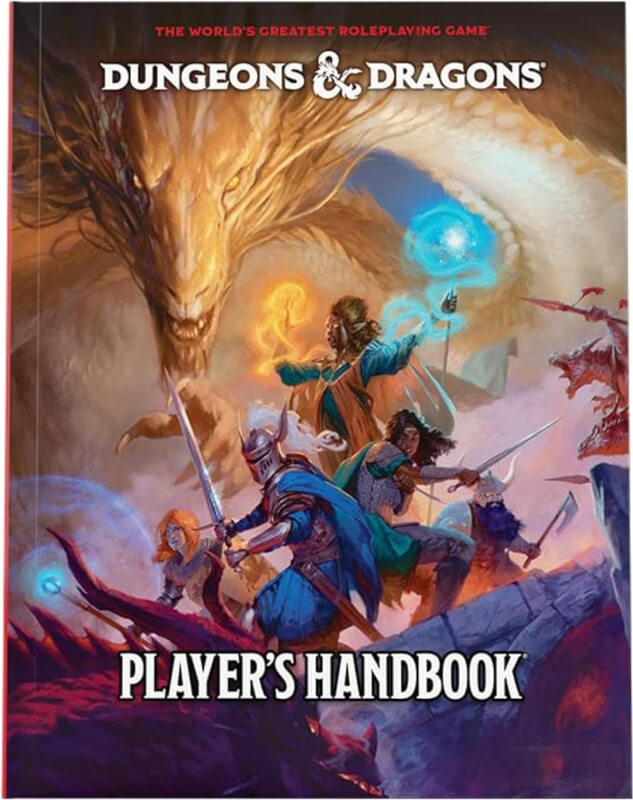
At this point I had a better idea of how the AI was working. I bought the Player’s Handbook and some solo adventures from Toronto-based Obvious Mimic Press to get better acquainted with the rules, and started a second adventure.
An Improvisation Machine
Large Language Models are essentially improvisation machines. They take the conversation so far as input, and output text that could plausibly come next. That means that, when acting as a Dungeon Master, they don’t have the storyline planned out in advance.
I started thinking of the AI as a TV writer who doesn’t know if they’re getting one season or ten. It throws mysterious things at me with a vague expectation that it can tie it all together eventually. My job as the player is to watch for a few threads that gel and make me go “ooh, that’s a compelling plot.” Then I focus on those threads and the AI will pivot along with me.
For the second adventure, the AI took us to a superstitious logging town on the edge of the forest.
The buildings are low and dense, with roofs of tarnished tin and mossy slate. The air smells faintly of iron filings and burning pine. Wind howls through the crooked alleys like a warning whispered too late.
In the center of town stands a massive metal box, three stories tall. No-one looks at it.
A coal-smeared girl watches you, holding a wooden doll whose limbs bend the wrong way. A pair of men drag a bundle wrapped in canvas. You hear faint, rhythmic ticking from within the bundle.
The guard jerks a thumb over his shoulder toward the town. “Go on then. Head to the Snoring Ember. Don’t wander after dark. Don’t touch anything that hums. And if you hear singing coming from the smokehouse, you didn’t.”
As you can see, the AI’s real strength is in atmospheric description. The game moved more briskly when I didn’t passively let the AI “lead” but instead picked out details and pursued them. The innkeeper gave us keys 3, 4, 5, and 7… the identity of the guest in room 6 became a plot point. A non-player-character made some contradictory statements… he turned out to be a villain. Overall the AI delivered a genuinely creepy “clockpunk horror in a frontier town” story.
I purchased the Creature Codex and Tome of Beasts 1 from Kobold Press, since they seemed likely inspirations for the monsters.
Limitations
I mentioned the AI had trouble with the details, the big picture, space, and time. Some examples:
The details: it regularly changes my wizard from she to he; forgets whether my cleric has a mace, morningstar, or hammer; says the magic item is onyx, then brass. When the characters reconvene at the tavern after doing separate investigations, the AI has them deliver a “summary” that doesn’t match the day’s events at all.
The big picture: it launches into an epilogue when the antagonist hasn’t been faced yet; it frequently veers wildly off-theme (e.g. presenting a puzzle room filled with music boxes in an adventure where the foes are not in the least bit whimsical).
Space: it says the portal is floating in the middle of the room, then on the far wall; it describes locations as miles apart yet connected by a short tunnel; it can’t keep track of who is in melee range with who during a fight.
Time: it regularly mixes up whose turn is next in initiative order; forgets which opponents are already defeated in a fight; and has characters you left behind several scenes ago suddenly contribute dialogue.
These limitations shouldn’t surprise us. LLMs seem to understand that objects exist in space and events occur through time because they have been trained on mountains of text written by humans who understand those things. But scratch the surface and it’s clear there’s nothing underneath that is keeping a map or timeline of the game at hand.
The AI tried to fill in one-liners during combat. They were so cringey I begged it to stop. A sampling of its taunts while fighting Stone Cursed: “Let’s see if you crack like the statues you look like.” “You were empty inside. Now you’re just… empty.” (just plain zero?) “You like stone? Let’s see how you handle living stone.” (before striking with a wooden staff… what?)
It also came out with some pretty weird similes: “blunted like a blade in the rain” (what’s that blade made of, soap?) “screams like a bowstring snapping” (pretty sure snaps and screams are different sounds) “the green glow in his eyes flickering like wind through leaves” (sunlight through leaves, maybe?)
Tips For a Fun Game
If you decide to try a similar experiment, know that—unfortunately—you will have to do the bookkeeping! Keep track of how much damage you have done to the opponent and mention it often during combat in case the AI forgets. Correct the AI if it mixes up initiative order, says the opponent hits with a roll below your armor class, forgets that you have imposed Disadvantage on the opponent, etc.
AIs try to be helpful. In a D&D context that means it tends to let your crazy plans always work. So challenge your character when the AI won’t. Give that poor schmuck who’s about to walk into your ambush a chance at passive perception. Ask if you need an Acrobatics check to avoid falling out of the rafters where you’re spying. Insist that the shadowy envoy from the Thieves’ Guild demand something in return before cheerfully telling you everything he knows.
AIs also try to keep you talking: like social media apps that invite endless scrolling, AIs end each interaction by suggesting what you could ask next. In a D&D context that meant it constantly encouraged me to “explore” or “investigate” or “do a deeper analysis”. So explore if you feel like it, but push ahead to the next scene when you’re ready. And when enough pieces are in place for an endgame, just have your character yell “The time is upon us! Tonight we ride!!” and the AI will take the hint. 🙂
AI is improving quickly, so the next generation of models may overcome the faults I described above. I guess I will find out if these four venture into the forest again!
In 1990, a computer magazine published a game I wrote. It was a big deal for teenage me.
There is now a thriving “retrocomputing” scene, with people making new software and hardware for computers like the Commodore 64 and Apple II. I decided to update my old game, and experience what developing for these classic machines is like now.
The Game
In August 1987, Compute!’s Gazette published Bounty Hunter, an educational game in which you chase a bad guy around the U.S. It was played on a map that flipped between east and west halves. I thought it would be fun to do a similar game with countries, played on a scrolling world map. Compute!’s Gazette published that game, International Bounty Hunter, in March 1990.
The Challenge
My goals for the 2025 edition:
An updated map, of course. The original had 2 Germanies and a Soviet Union!
A bigger map.
Make it run on the Commodore 64. The original was written for the C128, using BASIC 7’s new graphics commands. But I want this to run on the real hardware of the best-selling personal computer ever.
Can I do it with my rusty 8-bit programming skills?
Just for context: when I developed this in 1989, there was no World Wide Web (the first web page went online in late 1990). There were bulletin-board systems (BBSes) but participating in one would have meant a modem call to Winnipeg. Computer class in school was just typing, so learning programming was a solo exercise, using magazines and books.
A boy and his C128
The Data
How I made the map in 1989: I photocopied a map onto graph paper and colored the squares with markers. Which got the aspect ratio wrong, incidentally, because the characters on the C64 aren’t square. 🙄
The original map looks like a Robinson projection, so I projected the new map the same way: ogr2ogr -f "ESRI Shapefile" -lco ENCODING=UTF-8 -t_srs "ESRI:54030" projected_map.shp.zip /vsizip/ne_110m_admin_0_map_units.zip
I used Python libraries Fiona and Pillow to draw the shapes into a GIF.
I mostly re-used the country colors from the original game. For the countries in the Balkan Peninsula and the post-Soviet states, I used a greedy graph coloring algorithm to assign new colors.
How I got the routes between countries in 1989: I looked at a map and listed the connections by hand.
How I got the routes in 2025: I used the The World Factbook’s list of land boundaries. There’s some commentary mixed in with the data, but with a small amount of cleanup the list can be parsed with Beautiful Soup.
I asked ChatGPT what the main hub for international travel is on each continent. It told me: Atlanta, São Paulo, London, Dubai, Johannesburg, Sydney, and Tokyo. I allowed shortcuts between those hubs wherever you could draw a line over just ocean.
In the original game, your starting point—the country you’re “working for”—was random. I’m a tad uncomfortable even “pretend-working” for some unpleasant regimes out there, so in this update, you work only for countries rated “Free” in the Freedom in the World report.
The Code
This time around, I am developing on a Mac with the VICE emulator.
What language to use? I considered compiled BASIC, but opted for the cc65 C compiler. My C skills are rusty, but not as rusty as my BASIC!
I mentioned that I want a bigger map. Will I run into memory limits? The original map was 192×101, but for the correct aspect ratio it should have been 266×101. That already multiplies to 26,000, and we only have 38K for the program and data combined. Storing 2 color values per byte (Commodore computers have only 16 colors) is a quick way to cut the map’s bulk in half.
I began with the map drawing code, which would be the hardest part because it needs to be fast. Specifically, it must run in less than 1/60 of a second.
Why? The C64 used a cathode-ray tube monitor, where an electron beam races from the top to the bottom of the screen, lighting up pixels as it goes. If you’re modifying the whole screen—for example, to redraw a map—then you really don’t want to be drawing where the electron beam currently is, because that produces nasty flickering effects. Ideally, you want to follow along behind the beam, making your screen updates, ready for when the beam returns to the top of the screen.
The screen is redrawn 60 times per second. On a 1 MHz computer, that means I get about 16,666 clock cycles to retrieve the color data, unpack the 2 colors from each byte, write them to the screen, and handle loop counters.
As a baseline, drawing the map using C with nested loops (rows & columns) and *dst++=*src++ style copying takes around 210,500 cycles.
My final version, written in assembly language, comes in around 14,900 cycles. The speed was achieved with 3 techniques:
Loop unrolling: I do just 2 loops, one for the top half of the map and one for the bottom half.
Self-modifying code: Typically, to retrieve data from dynamically-allocated memory, you would use indirect-indexed addressing: LDA ($addr),Y. Indexed absolute addressing is faster, but to use it you have to know the memory addresses ahead of time and hardcode them. Or, calculate the addresses and insert them into your code on the fly. Self-modifying code sounds dangerous, but cc65 has macros to help make the code readable and the operations safer.
Counting down: I loop right-to-left across the screen. If you make your loop variable X go from 0 to 40, then after each INX (increment X) you have to compare to 40 to know if you’ve hit the end of your loop. But if you go from 40 to 0, then after each DEX (decrement X) you don’t have to compare to 0: DEX has a built-in check of whether it has hit zero. That saves one compare operation for every step of the loop.
You can measure speed using the stopwatch and breakpoints in the VICE monitor, but there’s a more fun way to do it. There’s a trick where you change the screen border color as your code runs, and the width of the color stripes shows you how long your code takes:
Scrolling the map is potentially a faster operation than drawing it from scratch. Scrolling is mostly just shifting data that’s already on the screen, and you only have to retrieve & unpack new data for the edges. Maybe that can be an exercise for 2026 🙂.
The other speed concern is the C64’s legendarily slow disk drive. I want to minimize the map size and the number of disk operations to read it. As in the original game, I compressed the map data, using run-length encoding for its simplicity. I tried a few variations of RLE. The one that worked best on this data: any byte with the high bit set to 0 is a color, any byte with the high bit set to 1 is a count between 3–130. I use only 2 disk reads: read 4 bytes to get the map dimensions, then read the remainder of the file in one go, using the same memory allocated for the map as the read buffer.
With map scrolling and disk I/O done, the rest of the program logic is simple:
And here’s the game: ibh2025.d64. Not much explanation is needed for playing it. You can generally jump along island chains and from islands to the nearest large landmass. Some tiny countries are missing. Some countries are abbreviated to save your poor typing fingers (like USA and DRC). You can type HELP or HINT or simply press Return to get a suggestion on where you can go next.
So how was the experience of coding for the C64 now? It was fantastic being able to write in C, build with Makefiles, debug with the VICE monitor, and browse advice on Lemon64. I was shocked how many details about the C64 sprang readily from my memory like 1989 was just yesterday.
1989 vs. 2025
The C64 is a classic for a reason: a powerful but affordable and friendly computer that savvy programmers pushed to do amazing things. I feel privileged to have grown up in the era of those machines and I am delighted that a community of enthusiasts is keeping them alive.
I’ll close by saying I’m still kinda proud of how teenage me captured those cartoon characters as sprites!
I snore, so I take an interest in devices that claim to stop snoring. I was frustrated by the subjective nature of online reviews. (“It seemed to work!” “My partner put down the knife!”) So I tried a promising Smart Nora machine but pledged to measure its effectiveness.
Sleep quality measured (as % deep sleep) with an old Fitbit
200 measurements, covering weekdays, weekends, active days, desk-bound days, etc.
(Not a blind experiment, of course, because I know when the machine is on.)
Verdict: it drastically reduced my snoring with a small penalty to sleep quality.
It’s not perfect though. Waking up next to someone who’s snoring a “3” on SnoreLab’s scale may still be irritating enough that you can’t fall back asleep.
I recently had a furnace problem. Sometimes, when the house switched from using the heat pump to the furnace, the furnace would not turn on. And the temperature would drop as the thermostat wasn’t clever enough to recognize something was wrong.
I have 2 tropical birds and they could get quite uncomfortable if the temperature fell overnight. So I wanted some way to wake myself to manually reset the thermostat when this happened.
My plan
I have an Awair Element air quality monitor that measures temperature. The accompanying app does alerts, but you don’t get fine control over the alert thresholds. But Awair has an API too. I turned it on and got my API key; now I could fetch temperature readings.
Next I turned to Zapier to schedule checks overnight. Strangely, the hour field in a Zapier scheduler event is in 12-hour format, so you can’t tell 2am and 2pm apart. Fortunately, you also get the full date/time in UTC, which you can format using the “H” option to get the hour in 24-hour format. Now I could schedule hourly temperature readings, and pay attention only to the ones that happened during the night.
The final step was to alert me if the temperature dropped below a threshold. I used Zapier to send myself a text, and set an old Fitbit Inspire 2 to buzz when my phone received texts. Together, the phone’s ping and the Fitbit’s buzz were sure to wake me up.
Happily, I only had to run this system for 2 nights before a furnace technician fixed the faulty part. But it was a fun exercise in tying together my existing devices to solve a problem.
I’ve been itching to try out Amazon’s serverless services for some time now. The European Union gave me the excuse I was looking for! This post is about how I used AWS Lambda to handle some new EU new customs requirements.
A company I work with was preparing for the EU’s requirements for more detailed customs declarations. Even before the new rules came into effect on July 1, customers had started to see more packages get stopped by customs with a request for details on every item inside.
We faced 3 problems:
Their storefront software (Shopify) allows only 1 tariff code per “product”—not enough for gift sets or bundles.
Shopify’s API does not expose customs information, so even if we could enter more details into Shopify, that information couldn’t flow automatically to the shipping software.
Their shipping software (ShipStation) can fill in customs information for orders, but again it allows only 1 tariff code per product.
I came up with a 3-part solution:
When a product in Shopify needs more than 1 tariff code, store the codes (along with description, quantity, and value) in Shopify metafields. A nice thing about metafields is that they are visible in Shopify’s API! We use the Accentuate Custom Fields app to allow store admins to view and edit the metafields in a friendly way.
When a new order appears in ShipStation, use ShipStation’s webhooks to send order details to a small piece of code hosted in AWS Lambda.
If the order needs tariff codes filled in, retrieve the metafields from Shopify, modify the order, and send it back to ShipStation.
AWS Lambda is a good fit for this task: too complicated for a duct-tape tool like Zapier, but too small to justify having a server.
When multiple software tools are communicating about products, SKUs—compact, unique names assigned to each product—are the keys that tie everything together. Strangely, Shopify’s REST API does not let you look up a product by SKU. Thankfully, Shopify’s GraphQL API does allow that. Here’s what a query to retrieve metafields given a product SKU looks like:
Overall verdict on AWS Lambda: Setting up a small piece of code that runs on demand was easy. A facility for testing was right there next to the code editor, which was nice. The Secrets Manager was convenient for safely storing API keys. The policies that govern permissions were ugly, but you can’t win ’em all. 🙂 I will certainly use Lambda for more projects in the future.
Years ago, I received a fantastic gift: the book Practical Ray Tracing in C. It came with a ray tracing program, DKBTrace, which later became POV-Ray.
I became a little obsessed with ray tracing and made a lot of images with POV-Ray.
This summer, we wanted to build an aviary for our parrots. After some research, we decided on a sturdy outer frame made of pressure-treated wood, with removable inner panels made of untreated wood and stainless steel mesh. (Untreated wood is safer if the parrots decide to chew on it.)
The more we discussed the design—how tall should it be? which way should the door open? how should the panels fit together?—the more I wanted to mock it up somehow. I thought, this is a job for a CAD program. I don’t know any CAD programs—but I know POV-Ray!
We went through 3 versions. With POV-Ray we could examine it from the outside, from the inside, from the top. We could watch how the door swings. A handy resource was MIStupid.com’s list of true lumber dimensions.
POV-Ray comes with some nice wood grain textures, which serve an extra purpose here: they show the kind of wood joints being used.
The wood grain shows the kind of joint being used
POV-Ray’s text-based input format was an advantage too: once the model was finished, I could simply grep for lines containing “PTW” (pressure treated wood) or “Pine” and get a list of what to order from the lumber yard.
To the developers of POV-Ray: two grey birds thank you for helping build their safe outdoor play space!
The sky is based on the Realistic Skies tutorial by Friedrich A. Lohmüller.
Protractor is an amazing tool for testing AngularJS apps, but I’ve had a tough time finding examples of nontrivial tasks in Protractor. This blog post is just to put one more example out there.
This post covers how I automated the use of this wheel scroller widget when testing an AngularJS app, VegUp:
A wheel scroller widget for picking food portion sizes
The introductory examples in the Protractor documentation will look familiar to anyone who has used JUnit, PyUnit, etc. Tests are a one-step-after-the-other process: do step 1, do step 2, check the results, do step 3, check that results have changed as expected, etc.
But the moment you try to do something more complex in Protractor, you discover that Protractor is a different beast. It is built on an asynchronous system, namely “promises”, and it employs tricks to force one-step-after-the-other behavior like other test systems.
Take for example the task of clicking on a dynamically-discovered list of items one after the other. This would normally be a job for a loop. If you Google “protractor loops”, you will find discussions in which one or two very smart people talk about how loops in Protractor are a brilliant use-case for closures in Java, and everyone else seems bewildered and unhappy.
Returning to the wheel widget. Some considerations about interacting with that widget:
All of the options in the wheel exist in the HTML. The ones way up above and way down below the selected item just happen to be hidden. That means we can’t just find the item we want and tap on it, because Protractor won’t let you simulate a tap that’s off-screen.
Simulating a flick-to-spin, tap-to-stop action seems like it would require very precise timing, so we’ll look for alternatives to that.
In this widget you can advance the wheel one item at a time, in either direction, by tapping on the item that is just above or just below the currently-selected item.
So now we have a well-defined task to implement in Protractor: tap on all the items in between the currently-selected item and the desired item, then finally on the desired item itself.
Now I know the Protractor style guide authors say to “NEVER use xpath”, but in this case I think XPath is exactly the right tool for the job. It provides all the pieces we need to accomplish this task. The following-sibling and preceding-sibling functions allow us to do tasks like “get all the items after the currently selected one” or “get all the items before the desired one”. And XPath supports set operations like union and intersection. Given those capabilities, we can do this:
If you build up the XPath expression to do these selection, union, and intersection operations, and assign it to a variable named “steps”, then all you need in Protractor is this, simple and friendly for future maintainers:
I do agree with the Protractor style guide authors when they say that XPath expressions can be difficult to read. But since we know how to do union and intersection constructions in XPath*, you can write little union and intersection functions in JavaScript and use them to build up the complete XPath expression in a readable step-by-step fashion.
function getWheelSteps(wheel, desired) {
  var wheelXPath = '//*[contains(@class,"mbsc-sc-whl") and @aria-label=' + wheel + ']';
  var selectedItemXPath = wheelXPath + '//*[contains(@class,"mbsc-sc-itm") and @aria-selected="true"]';
  var desiredItemXPath = wheelXPath + '//*[contains(@class,"mbsc-sc-itm") and @data-val=' + desired + ']';
  return xPathUnion(
    // desired is below selected on wheel
    xPathIntersection(
      selectedItemXPath + '//following-sibling::*',
      xPathUnion(desiredItemXPath + '//preceding-sibling::*', desiredItemXPath)
    ),
    // desired is above selected on wheel
    xPathIntersection(
      selectedItemXPath + '//preceding-sibling::*',
      xPathUnion(desiredItemXPath, desiredItemXPath + '//following-sibling::*')
    )
  );
}
Finally, here is the code in action, entering breakfast in a food journal:
Every now and then I need to write a program to generate an image. Maybe it’s because the image is naturally an algorithmic one, like a fractal. Or maybe it’s because the image is fiddly to put together, and there are details I may need to tweak, and I don’t want to have to make the image by hand over and over. Whatever the reason, for tasks like these I am quite fond of the GD Graphics Library.
My partner and I wanted to make matching t-shirts for St. Patrick’s Day. Well, not quite matching: her family name is solidly Irish, and I was born in the U.K., so we used the classic “Kiss Me” slogan for her shirt and a slight variant for mine:
I wanted a tartan pattern in the word “Irish”. Because her surname is a common one, there are many different tartans for different branches of the family. I chose instead to use a special tartan designed “for all those of Irish descent at home in Ireland and around the world.”
The Irish Diaspora tartan
Making this tartan is a super-simple coding task in GD. The stripe colors and widths are read from a text file, then two 4×4 tiles, and , are used to draw the horizontal and vertical stripes, respectively. The tiles have a transparent background color so that the stripes in the tartan paint over top of one another properly.
That image tiles nicely, and you can create additional input files to produce any number of different tartan designs.
Why didn’t I just use a tool like the online Tartan Designer? That was an interesting lesson in flag etiquette and small details.
Have a peek at these sites: Heritage of Scotland, Alexis Malcolm Kilts, Nicolson Kiltmakers. Notice the three thin stripes in the colors of the Irish flag: they go green-white-orange left to right, but orange-white-green top to bottom. None of the tartan-making websites let me specify a different ordering of colors for the horizontal and vertical stripes. “Darn,” I thought, “I’ll just have to write a tartan-making program myself to get that detail right.”
A commenter on the blog Broadsheet cites the correct way to display a flag vertically.
Turns out I should have checked more official sources first, like the Scottish Register of Tartans. There, the stripes go green-white-orange top to bottom. How am I sure that’s the correct order? The government of Ireland publishes a guide to the history and correct display of the flag: “the green should be … uppermost in the vertical position.”
So I could have just used the online Tartan Designer after all! Nevertheless, perhaps my tartan-making program can be useful to someone as a cute little demo / tutorial of using GD in Python.
Continuing to chronicle my fascination with maps and computers…
In my last two posts I described past projects involving computers and maps: creating a game for the Commodore 128, and later creating a website to plot the progress of my running group in a virtual cross-country run. In this post I will describe how two free tools — Google Earth and W. Randolph Franklin’s PNPOLY function — helped me in a very practical task: finding a place to live.
When I was preparing to move to Ottawa in 2009, I looked at the rental listings on Craigslist and Kijiji. My partner knew which neighbourhoods we should consider — she had lived in Ottawa before. But how could I know which rentals were in those neighbourhoods without clicking through all of the listings, looking at the little maps one by one?
Neighbourhoods sketched using Google Earth.
Step 1: Using Wikipedia’s list of Ottawa neighbourhoods, I drew some polygons in Google Earth and saved them as KML files, a handy text-based, human-readable format. Yes, you can draw shapes right on top of the map in Google Earth! Look for this button: A good tutorial is here.
Step 2: Using the Universal Feed Parser Python module, read the Craigslist and Kijiji rental listings. Both websites are consistent in how they display addresses, so it’s not hard to grab the address out of each listing. Run the addresses through Google’s geocoding service.
Send an address (in this case, CBC Radio’s offices in downtown Ottawa), get back a latitude and longitude. Such a simple yet powerful service!
Putting it all together.
Step 3: I had the outlines of neighbourhoods and I had the locations of individual rental listings. How to sort listings into neighbourhoods? That’s where a great snippet of code comes in: W. Randolph Franklin’s PNPOLY function. It’s a 7-line function that tells you whether a point lies within a given polygon. It’s written in C, but it uses only simple operations so it’s dead easy to translate into the language of your choice.
A little scripting to glue the pieces together and I had a system to feed me new listings in just the neighbourhoods I wanted. No fancy GIS setup required — just free tools that any hobbyist programmer can put to use.
The happy ending to the story: found a place within 20 min. walk to work, fenced outdoor space for the dogs, big kitchen, covered parking. Thanks Google Earth and W. Randolph Franklin!




 and
and  , are used to draw the horizontal and vertical stripes, respectively. The tiles have a transparent background color so that the stripes in the tartan paint over top of one another properly.

 A good tutorial is